LAB NOTES / DISPLAY & ENERGY
A screen that
keeps its memory.
An ESP32, eight wires and a small e-paper display. Build a dashboard that remains readable while the screen sleeps.
01 / FROM SKETCH TO SCREEN
Your first e-paper dashboard.
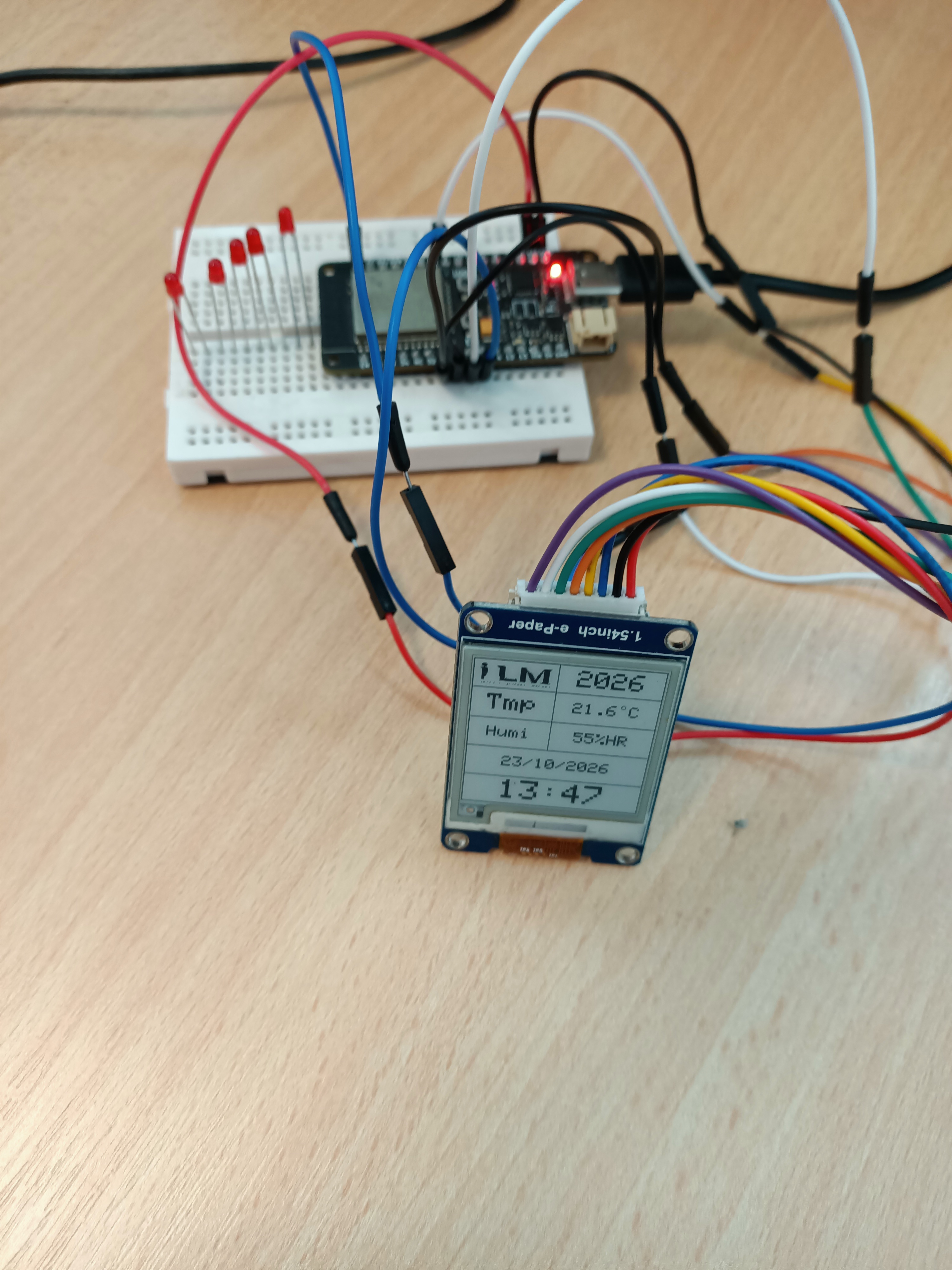
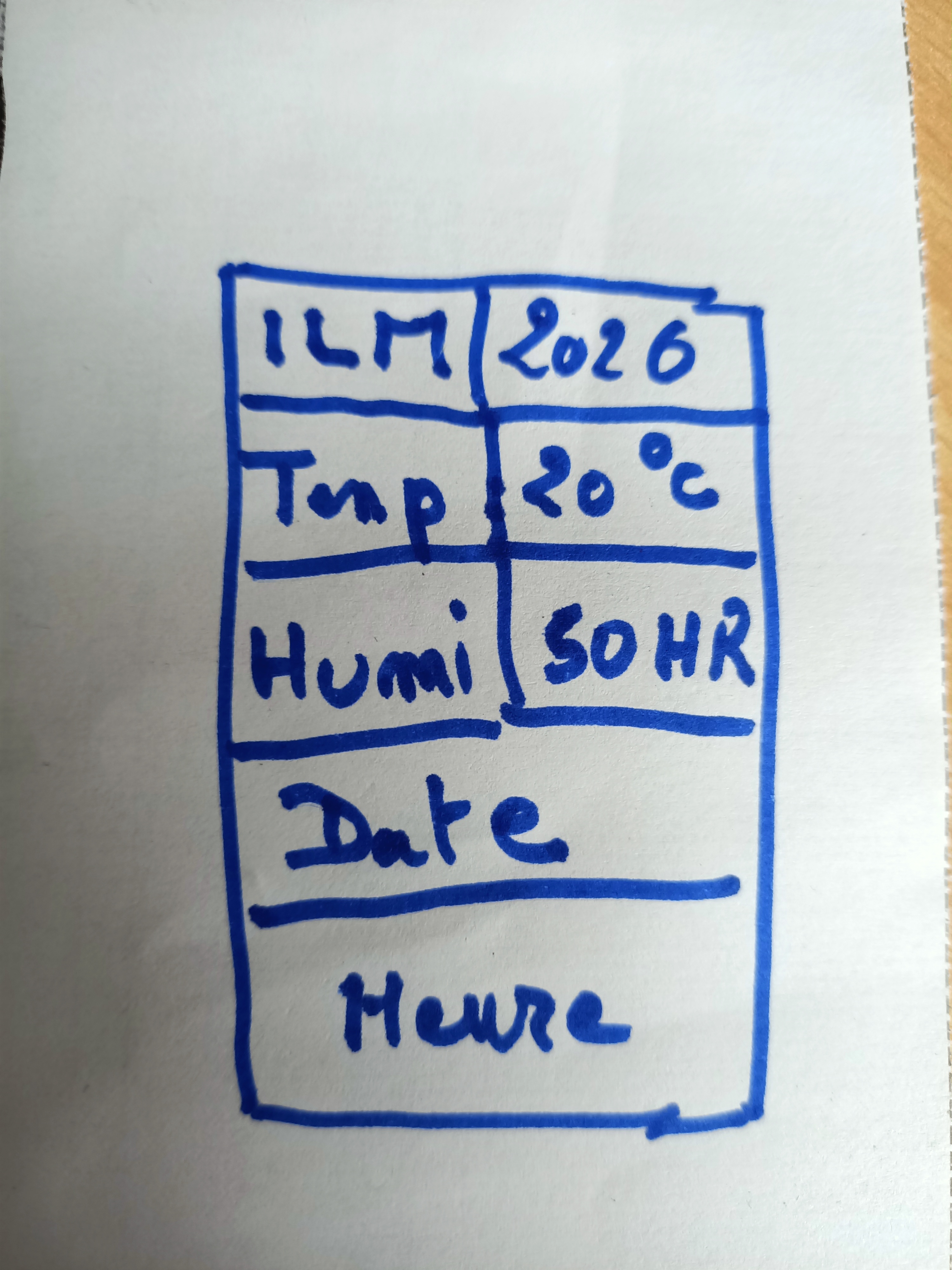
The project displays the iLM logo, year, temperature, humidity, date and time. No sensor is needed for this demonstration.
What you need
- A uPesy ESP32 Wroom Low Power board
- A black-and-white Waveshare 1.54-inch e-paper module with its driver board and eight-wire cable
- A breadboard, jumper wires and a USB data cable
- Arduino IDE, GxEPD2 and Adafruit GFX libraries
Simulated readings
Temperature varies slowly between 18 and 22 °C and humidity between 45 and 55 % RH. These are not actual measurements. The demonstration program updates the display every 60 seconds.
02 / EIGHT WIRES, ONE SPI CONNECTION
Connect the screen to the ESP32.
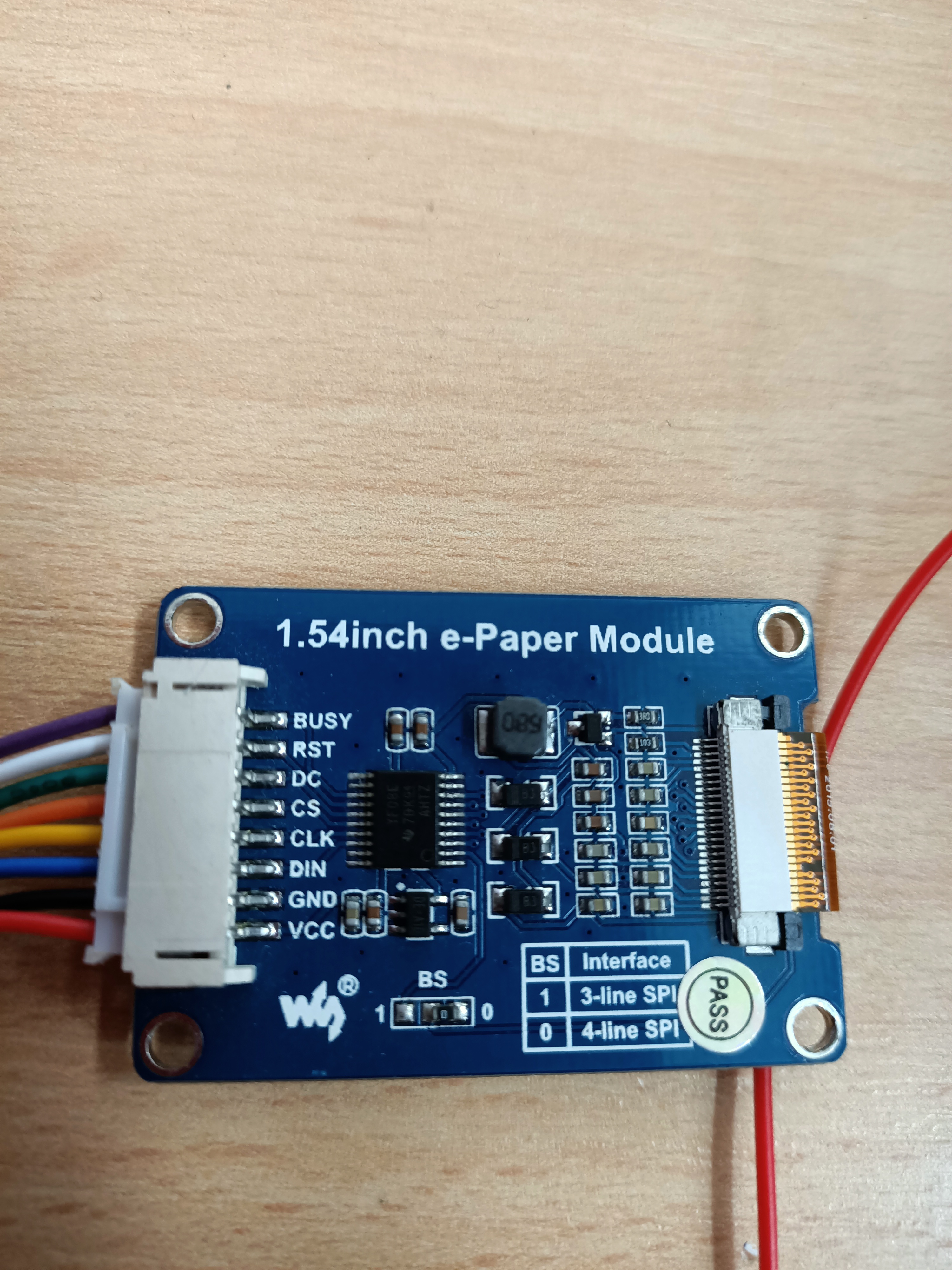
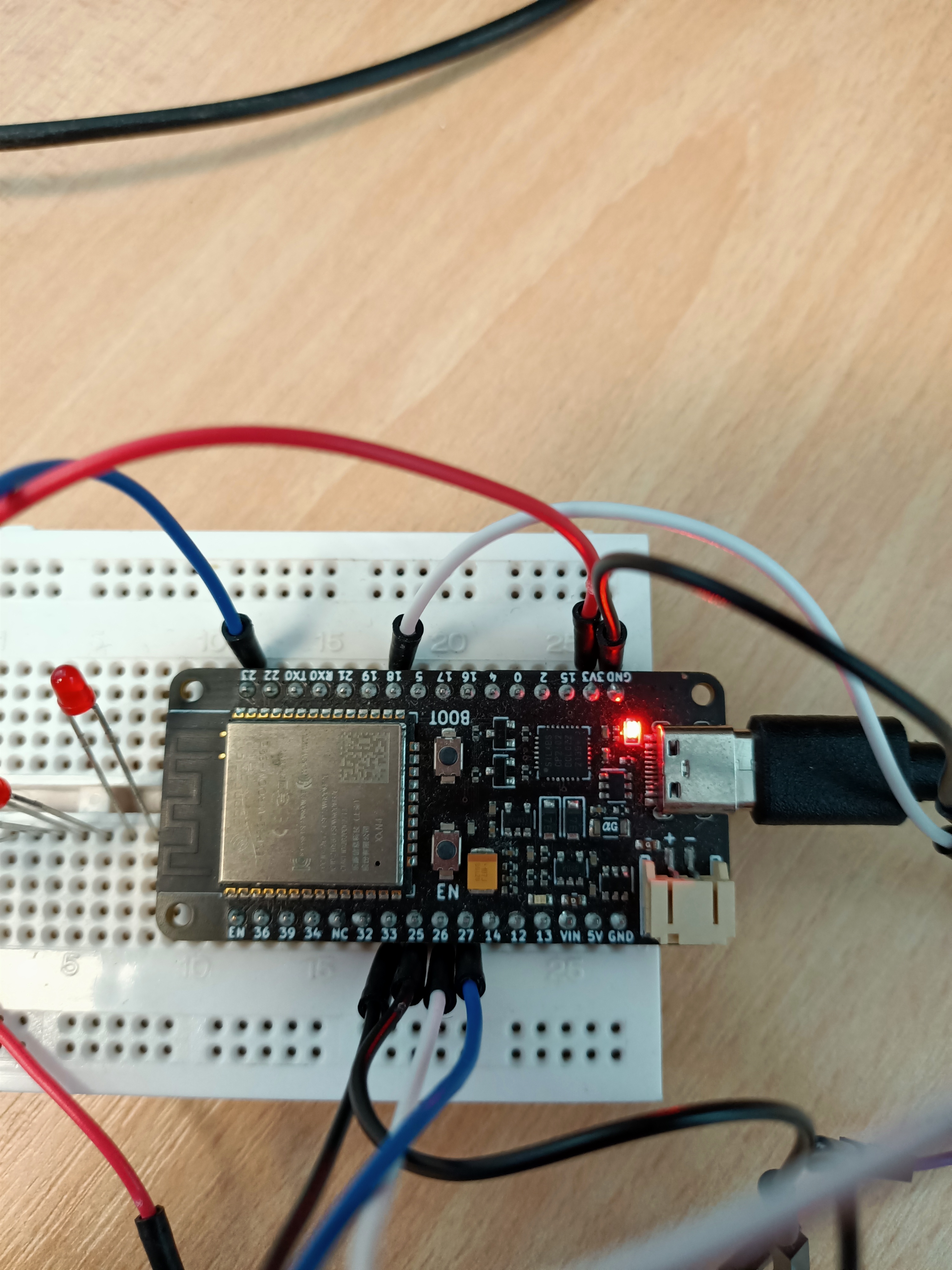
Disconnect USB and the battery before wiring. Follow the printed labels: GPIO numbers identify signals, not physical header positions.
| Supplied cable wire | Display | ESP32 |
|---|---|---|
| Red | VCC | 3V3 |
| Black | GND | GND |
| Blue | DIN / MOSI | GPIO23 |
| Yellow | CLK / SCK | GPIO18 |
| Orange | CS | GPIO27 |
| Green | DC | GPIO26 |
| White | RST | GPIO25 |
| Purple | BUSY | GPIO33 |
Colours refer to the photographed cable. With a different cable, follow the module labels.
03 / A PROGRAM YOU CAN REUSE
Complete code. Logo included.
This version was compiled and uploaded to the pictured build. It puts the screen to sleep after each update; the ESP32 remains awake between updates.
- Install the tools. Add the Espressif ESP32 board package in Arduino IDE. Install GxEPD2, Adafruit GFX Library and the suggested dependencies, including Adafruit BusIO.
- Open the project. Download and extract the archive. Place
EpaperTableau.inoandlogo_ilm.hin a folder namedEpaperTableau, then open the .ino file. - Select the board and port. For this uPesy Wroom, select “ESP32 Dev Module”. The test used COM4; select the actual port on your own computer.
- Upload and observe. Flickering during a full refresh is normal. Set the serial monitor to 115200 baud.
Loading code…Direct downloads: .ino program · .h logo. The tested Arduino program is shared by both language versions; its comments and display labels remain in French.
04 / DISPLAY, THEN SLEEP
The image stays.
Power use drops.
E-paper pigments retain their position without continuous refreshing. Sleeping the screen and sleeping the ESP32 are separate operations.
Wake up
The ESP32 starts and initialises the display.
Update
The program calculates values and draws the dashboard.
Sleep
The screen sleeps; the ESP32 can then sleep too.
What the program already does
display.hibernate();With the V1 driver, this command powers down the panel drive voltages and requests controller deep sleep. The image remains visible. The blue adapter board remains connected to 3.3 V.
What to add for ESP32 deep sleep
A simple delay() does not put the board in deep sleep. For battery operation, the ESP32 can wake periodically, display new information and go back to sleep.
#include <esp_sleep.h>

// Conceptual example, after updating the display:
display.hibernate();
esp_sleep_enable_timer_wakeup(300ULL * 1000000ULL);
esp_deep_sleep_start();
Educational snippet, not included in the downloaded program. After five minutes of sleep, execution starts again in setup(). Adapt time initialisation so it does not reset the clock to compilation time at each wake-up, and keep the simulation counter in RTC memory if needed. The complete cycle also includes awake time.
Useful orders of magnitude
Deep-sleep current specified for the GDEP015OC1 panel associated with the V1 driver: 2 µA typical, 5 µA maximum. This is not a measurement of the complete module.
uPesy’s stated deep-sleep current for the Low Power board alone, powered through its battery connector or VIN under the specified conditions. It excludes the display and sensors. USB power is not the optimised mode.
Is a full refresh required when a number changes?
No. The V1 driver supports partial refresh: a selected area can be updated faster and with less flicker. Occasional full refreshes clear residual images; their frequency depends on the panel and how it is used.
Controller RAM is not retained after hibernation. Reliable partial updates after waking require restoring the necessary data and state. The supplied program uses full refreshes after waking the screen.
| Strategy | Benefit | Trade-off |
|---|---|---|
| Full refresh + hibernation | Simple; deep sleep between updates | Flicker and full-refresh energy |
| Partial refresh + retained memory | Useful for frequent small changes | Potentially higher standby current; periodic full cleanup |
| Display and ESP32 in deep sleep | Useful for infrequent information updates | Wake-up, time and state management required |
Compare a complete cycle: Average current = (active current × active time + sleep current × sleep time) / cycle duration. Use consistent current and time units. Reducing wake-ups and radio-on time can matter as much as display sleep.
AT THE WORKBENCH
If nothing appears.
Blank display or “Busy Timeout”
Check 3V3, GND, BUSY on GPIO33 and RST on GPIO25, then DIN and CLK. Confirm the panel model: this build works with GxEPD2_154. Another 1.54-inch display may need a different driver. Check the wiring before trying drivers.
The dashboard remains after disconnecting USB
This is normal: e-paper retains its image without power. It does not mean the controller is still running or new values can be displayed.
The values do not match the room
Temperature and humidity are simulated. For actual measurements, add a sensor and replace the demonstration calculations with readings from it.
The time is wrong after a restart
Without Wi-Fi, compilation time is reused. Enable NTP in your local copy or use an RTC. During deep-sleep operation, preserve time instead of resetting it on every pass through setup().
Views since counter activation, without cookies. Reloads from the same connection within 30 seconds are grouped. The French and English tutorial share this counter. This is not a unique-visitor count; some bots may be counted. No IP addresses are stored in the counter database; ordinary web-server logs remain separate.
FURTHER READING
Workshop references.
- Waveshare — 1.54-inch module instructions and precautions ↗
- GxEPD2 — display library and drivers ↗
- GDEP015OC1 panel data sheet (PDF copy) ↗
- uPesy — ESP32 Wroom Low Power board ↗
- Espressif — low-power modes ↗
Workshop build and photographs · 23 October 2026. The iLM logo was supplied for this example.