THE CONNECTED DEVICE LAB
From an idea
to your first sensor.
An ESP32, a few wires and the desire to learn. Build your first connected projects, one tutorial at a time.
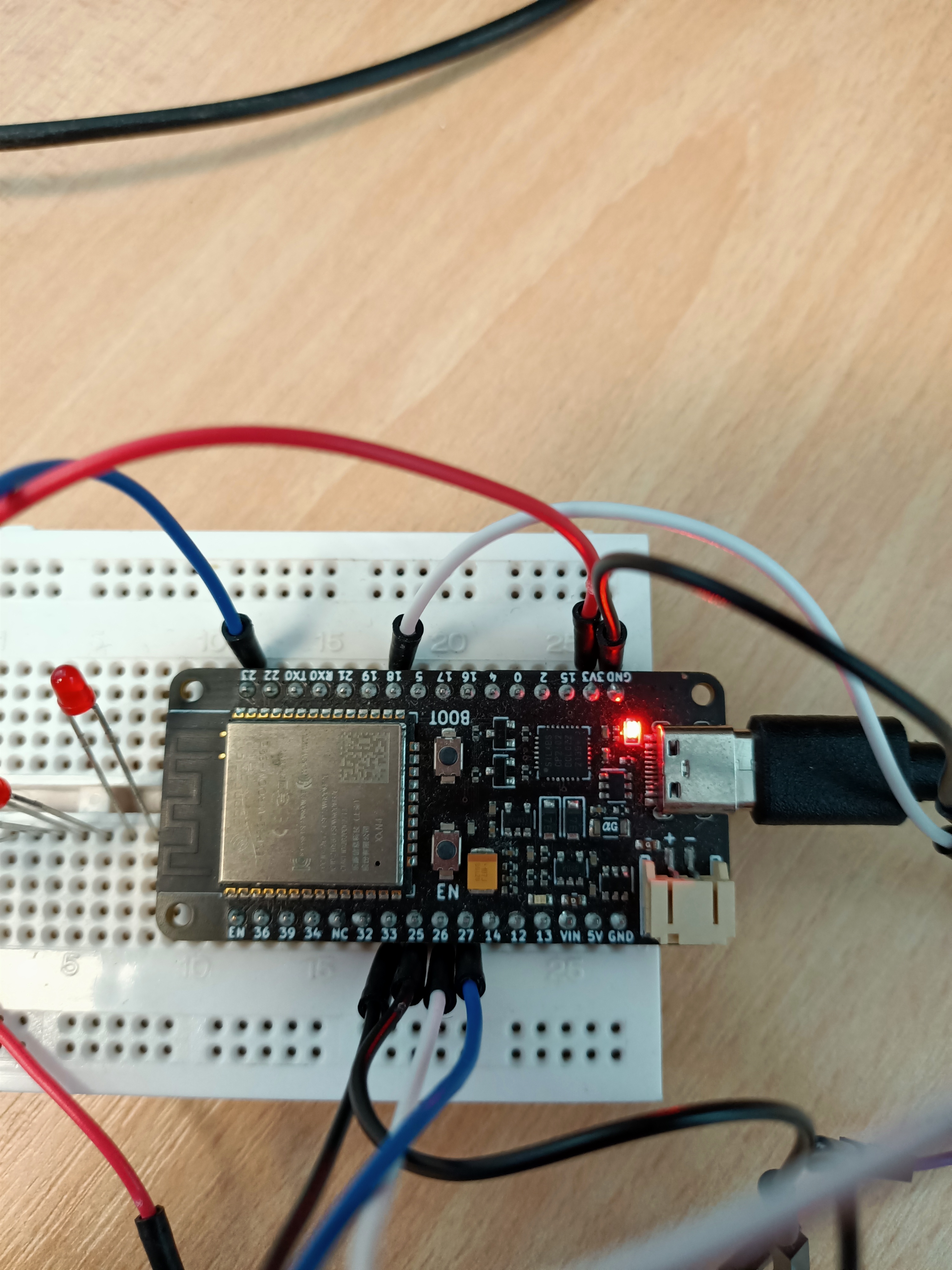
YOUR NEXT SMALL SUCCESS
Where shall we start?
Get your ESP32 ready
Install Arduino IDE, select your board and upload your first program.
Start here →Measure temperature
Wire a DS18B20 and read its measurements in the serial monitor.
Connect the sensor →Understand your readings
Recognise connection errors and learn what sensor values mean.
Troubleshoot a reading →Display information on e-paper
A tested Waveshare 1.54-inch build, complete logo code and an introduction to low power.
Follow the e-paper tutorial →01 / THE BASICS
Set up your ESP32.
This guide uses a classic ESP32-WROOM development board. For an ESP32-C3 or S3, select your exact board and check its pins.
- Install Arduino IDE.
- Follow the official Espressif installation guide to add the ESP32 boards package.
- Connect your board using a USB cable that carries data. Select the board and its port in the Tools menu.
- Open a simple example, upload it and set the serial monitor to the baud rate used in Serial.begin.
02 / SENSORS
Your first temperature reading.
Goal: read a three-wire, externally powered DS18B20 using a classic ESP32 development board. No account or Wi-Fi connection is required.
Gather the parts
An ESP32, a DS18B20, a 4.7 kΩ resistor, a breadboard, jumper wires and a USB data cable.
Connect the sensor
Disconnect USB before wiring. Identify VDD, DQ and GND using your sensor documentation. Probe wire colours alone do not guarantee the pinout.
| ESP32 | DS18B20 |
|---|---|
| 3V3 | VDD |
| GPIO4 | DQ (data) |
| GND | GND |
Upload the program
In Arduino Library Manager, install OneWire by Paul Stoffregen and DallasTemperature by Miles Burton. Select your ESP32 and its port, then upload this code.
#include <OneWire.h>
#include <DallasTemperature.h>

constexpr uint8_t SENSOR_PIN = 4;
OneWire oneWire(SENSOR_PIN);
DallasTemperature sensors(&oneWire);

void setup() {
  Serial.begin(115200);
  sensors.begin();
}

void loop() {
  sensors.requestTemperatures();
  float temperature = sensors.getTempCByIndex(0);
  if (temperature == DEVICE_DISCONNECTED_C) {
    Serial.println("Sensor not found: check the wiring.");
  } else {
    Serial.print("Temperature: ");
    Serial.print(temperature, 2);
    Serial.println(" deg C");
  }
  delay(2000);
}
Watch your first reading
Open the serial monitor at 115200 baud. A new reading appears roughly every three seconds, including conversion time. Gently warm the probe between your fingers and watch the value change.
03 / UNDERSTAND THE RESULT
An unexpected reading?
−127 °C or a missing sensor
With DallasTemperature, DEVICE_DISCONNECTED_C indicates a failed reading. Check the common ground, GPIO and pull-up resistor.
85 °C at startup
The DS18B20 startup value may appear before a valid conversion. Request a conversion before reading. If it persists, check power and wiring.
A value that keeps changing
Keep the sensor away from heat generated by the board regulator. Allow it to reach thermal equilibrium and compare readings under stable conditions.
Displaying two decimal places does not guarantee an accuracy of 0.01 °C. Consult the manufacturer’s data sheet to distinguish resolution from accuracy.
THE NEXT BUILD
A small screen.
A new way to display.
Follow the illustrated e-paper tutorial to connect a Waveshare display, draw a dashboard and understand the difference between sleeping the display and sleeping the ESP32.
Build the e-paper dashboard ↗LEARN BY BUILDING
Less jargon. More understanding.
Each tutorial links the hardware, the code and the result. Work at your own pace, with curiosity as your starting point.